Freelance translator workflow: step by step
Ten years ago, when I started studying linguistics and translation, we were taught translation theory: how to convey meaning, how to preserve the form... But nobody taught us how to actually perform translations.
So, I got my first customer who said, "I need you to translate a document from Chinese to Russian." And then what? Open it in Microsoft Word and type over the original text? Should I open the source document on the left and the target on the right, rewriting line by line while trying to mimic the formatting? Or should I just paste it into Google Translate and tweak the result? Let me tell you how I work. If you are just starting out as a translator, or if you occasionally need to translate something, you might find some useful tips here.
Disclaimer
I am not saying that every translator works exactly this way, but this workflow is based on real-life experience. If you think something could be done better or more efficiently, you are more than welcome to leave a comment!
What do we have as a source?
A translator faces texts in various formats. It might be an agreement in Microsoft Word *.doc with formatting and footnotes. It could be a construction schedule in an Excel spreadsheet.
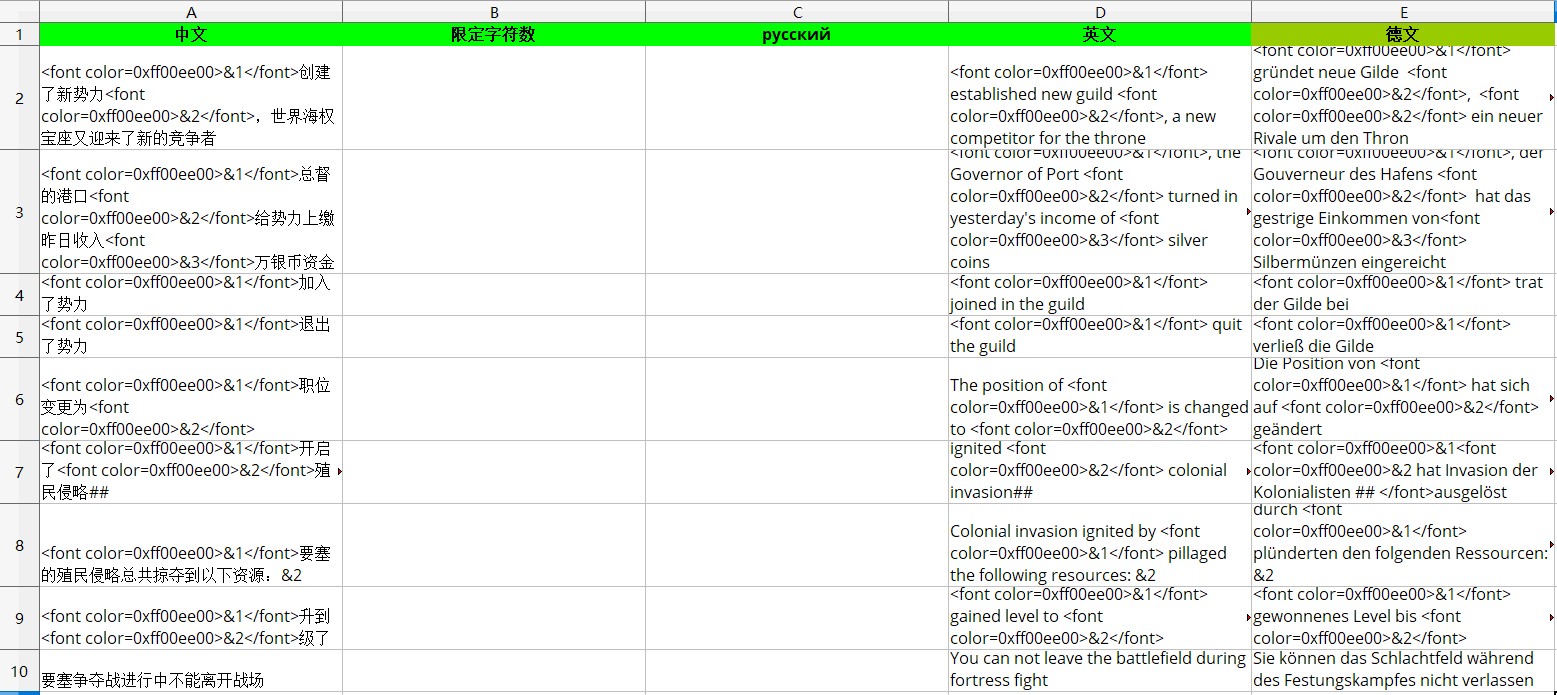
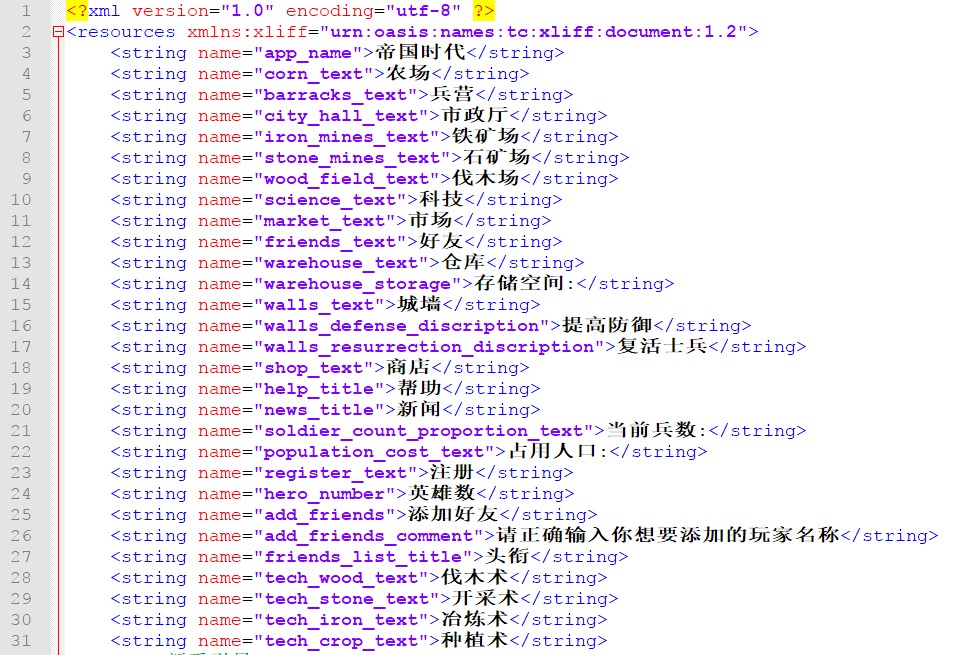
It could be a bunch of emails from Outlook. It could be application strings in an *.xml-like format.
What do we do with all this? How do we translate? How do we maintain a glossary of frequently used terms?
Technologies
Computer-Assisted Translation
Computer-Assisted Translation (CAT) is a workflow principle that is a must in the 21st-century translation industry. It is impossible to be competitive as a translator while ignoring modern technology. There are many standalone programs and online applications related to CAT, such as Trados, MemoQ, Tolma.ch, and OmegaT. They all share the same principle: the text is divided into segments, which are translated one by one. Each segment and its translation are automatically saved in the TM (Translation Memory, a database of translations) independent of any specific document. The program analyzes each new segment and looks for similar ones in the TM. If there is an exact match, the software can automatically substitute the translation; if the match is partial, it will highlight the similarities and differences compared to the current segment. CAT tracks terminology, helping to maintain consistent translation of terms across a set of documents (names of spare parts, characters, etc.). The more you work with CAT, the larger your translation memory becomes, and the easier it is to translate every new document.
Machine Translation
Using machine translation as an aid for human translators has been a trend for the last few years. This does not mean translating via Google Translate and submitting the result. Rather, it means displaying the machine translation of each segment during the process as a reference. This can increase translation speed by 100–200% without reducing quality. However, this only works when the translator actually knows the language. Editing a machine translation from an unfamiliar language is nearly impossible and can significantly distort the meaning.
Software
These programs are useful for translation work. I will elaborate on each as required.
- OmegaT: A standalone CAT tool — a simple and reliable open-source tool for translation.
- GoldenDict: Online dictionaries are good, but having offline access is a great option too.
- LibreOffice: I have used this office suite for decades, but I always keep Microsoft Office handy in case of complex formatting issues from clients.
- f.lux: To reduce eye strain and help you sleep better.
- Okapi Framework: A set of useful programs for working with translation memories and spell checking.
- ApSIC Xbench: Automated quality assurance for translations. Version 2.9 is no longer supported but is available free of charge.
- Notepad++: A powerful text editor, useful for technical fixes.
Workspace Arrangement
Let's arrange your workspace efficiently. Do not store files on the desktop or in My Documents. Have a separate folder, e.g., Work, and use it for work-related items only. You can organize its interior as you see fit. For me, the second level of folders consists of the companies I work with.
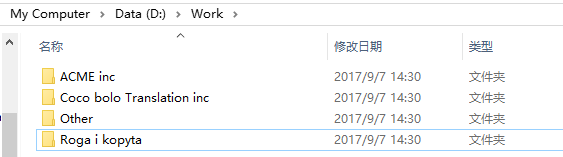
I am a big fan of automation in translation. The more you translate, the larger your Translation Memory becomes, making future translations easier. This is why I try to perform all translations in OmegaT. It is not hard to get used to working with CAT. You just need to store the source file in a specific folder and launch OmegaT. Sometimes the file requires some preparation, but it is not difficult.
Preparing Files for OmegaT
The main idea is to leave only the content you need to translate and remove all extras. You can keep the formatting, though. For example, in an Excel spreadsheet, a customer might provide columns like ID, Chinese, Russian, and Comments. Obviously, the end result should contain the desired content, but the headers do not require translation. Create a copy of the file and delete the contents of the extra columns and rows, but don't delete the rows themselves so as not to break the file structure — this will make it easier to reassemble everything later.
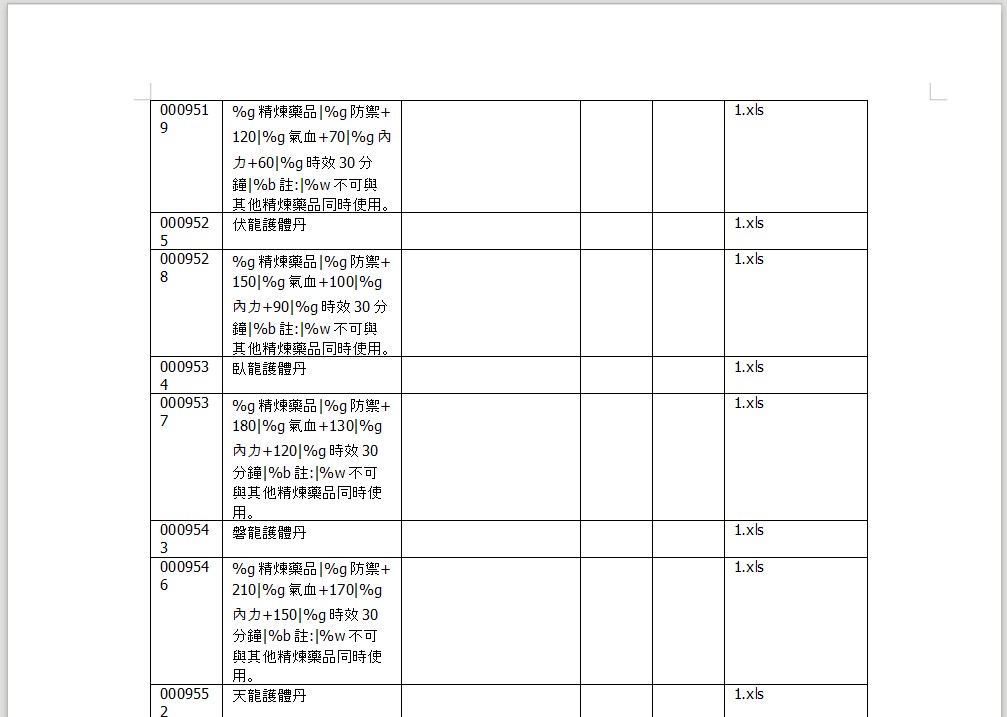
In a text document, extras could include customer comments, explanations in the target language, and so on.
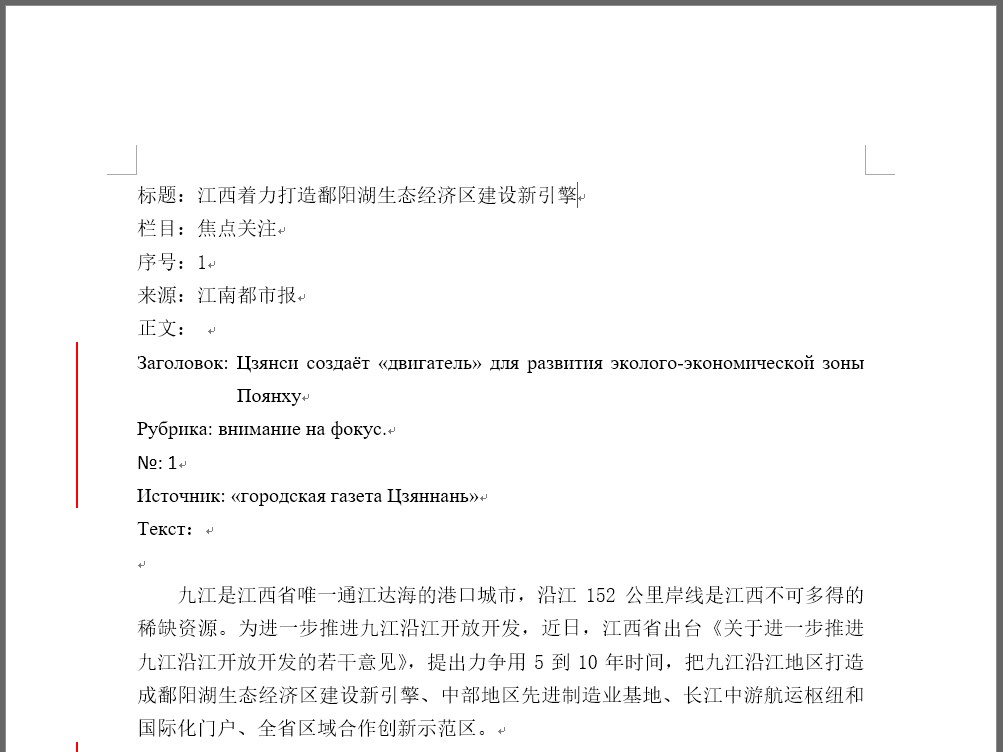
Sometimes a Word document is just a repository for disparate pieces of text that the client has graciously structured in the same file.
Some technical files, like strings.xml from Android apps, contain variable names alongside the text.
However, OmegaT and other CAT tools understand file structures and can hide irrelevant content during the translation phase. If you are constantly translating emails, just copy the email text into a text file or Word document. Summary: save the formatting, remove irrelevant text. Always keep the original files sent by customers.
Projects
We assume that you have installed OmegaT and connected machine translation. In OmegaT, each project has only one working TM where newly translated texts are stored. Therefore, it is reasonable to create separate projects not only by language but also by subject matter. For example, I have a project General_ZH-EN for general texts and random orders, and Games_ZH-EN for game texts. Additionally, when working on large projects for a specific customer, it makes sense to create a separate project to maintain unique terminology for that specific product. For example, for translating the game Luvini from Chinese to Russian, I have a project called Luvinia_ZH-EN. Memories from one project can be added to another as auxiliary resources: when starting a new game translation, create a separate project and connect the memories from other game projects.
Glossary
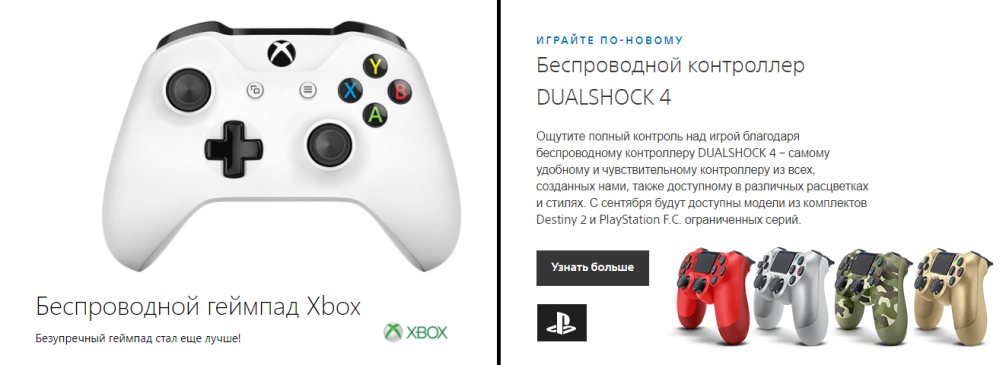
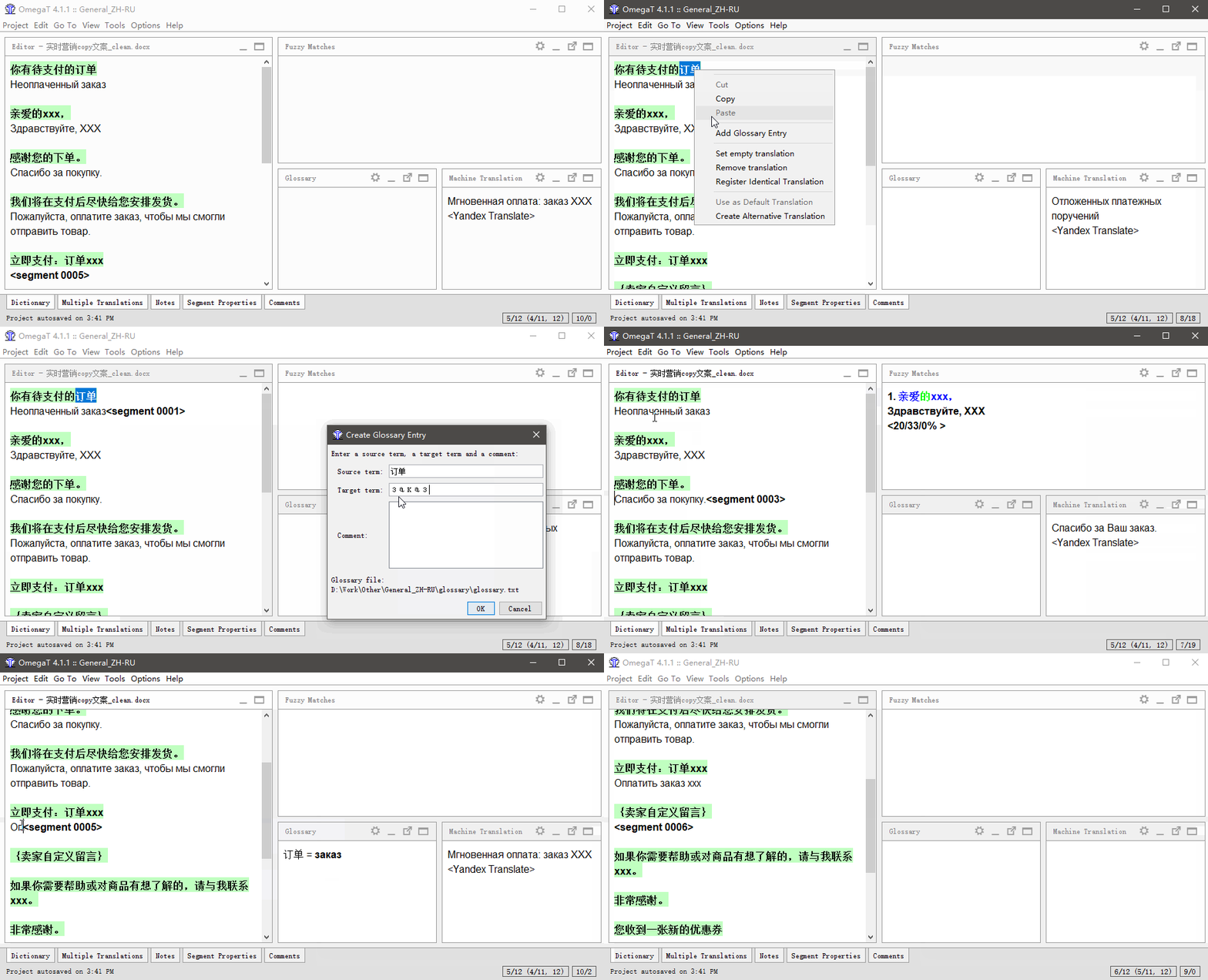
Maintaining a project Glossary is very important. A Glossary is not a dictionary; it is intended to store translations of words in the context of a specific project. Adding a new entry to a Glossary in OmegaT is not difficult; here is an example. You should add project-specific terms to the Glossary. For example, in PlayStation games, the joystick should be called only "controller," while for Xbox, it is "gamepad." These are requirements from Microsoft and Sony respectively; you cannot confuse them if you are doing a professional translation.
In fiction and non-fiction translations, you can add character names to the glossary, especially if the translation is not a direct transliteration. For example, a man named 灰 [hui] can be translated as Hooee or Hui. If he is a character in a game (and his Chinese origin can be neglected), he might become Mr. Gray. When a name appears once in three thousand characters, you might forget exactly how you translated it, or even if you encountered it before. The Glossary and CAT will prompt the correct option before you even have to think about it.
Translating! — A Specific Case
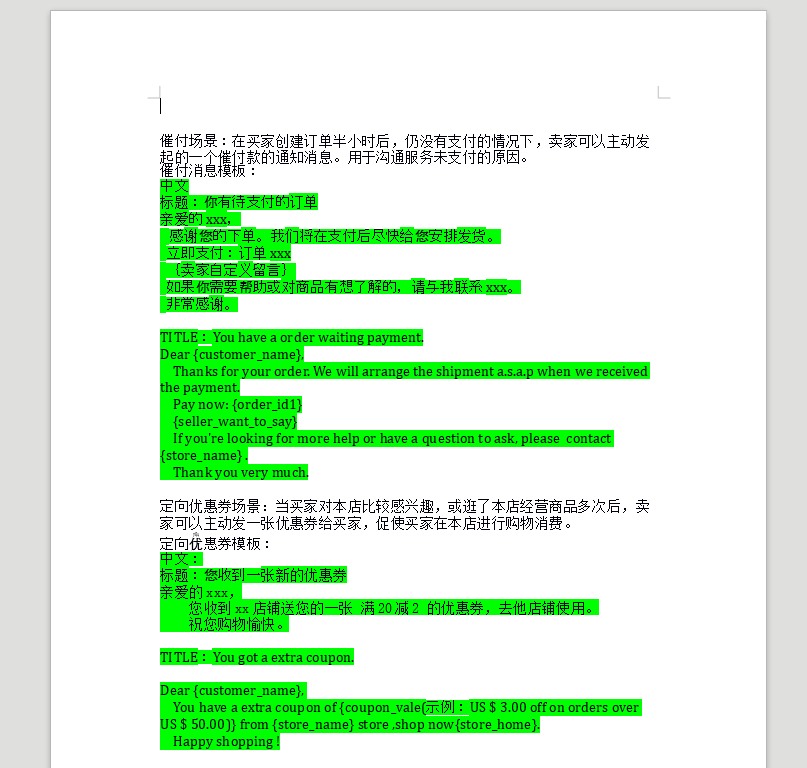
The customer has given us a file in Word. I will explain its processing step by step.
Define the Content
We are translating from Chinese to Russian. The document contains lots of Chinese and some English. Obviously, not all of this will be visible to the end user. From the context, it is clear that the following do not need translation:
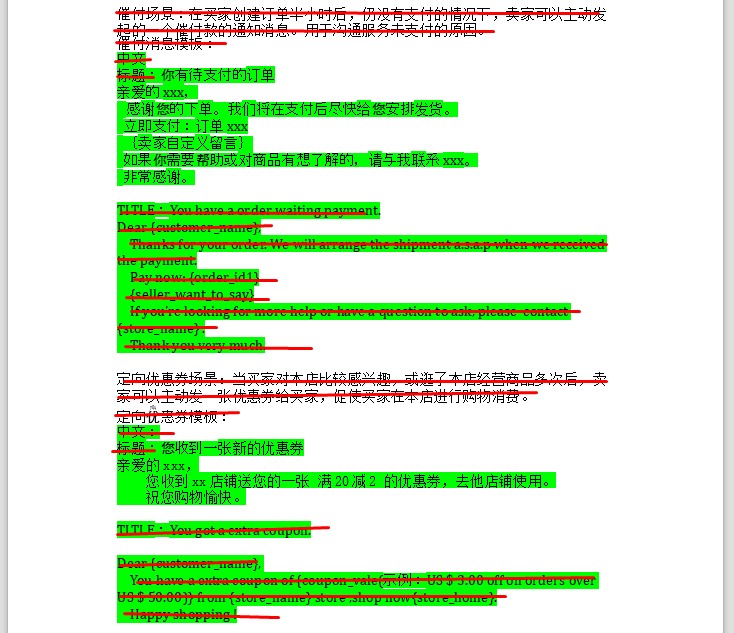
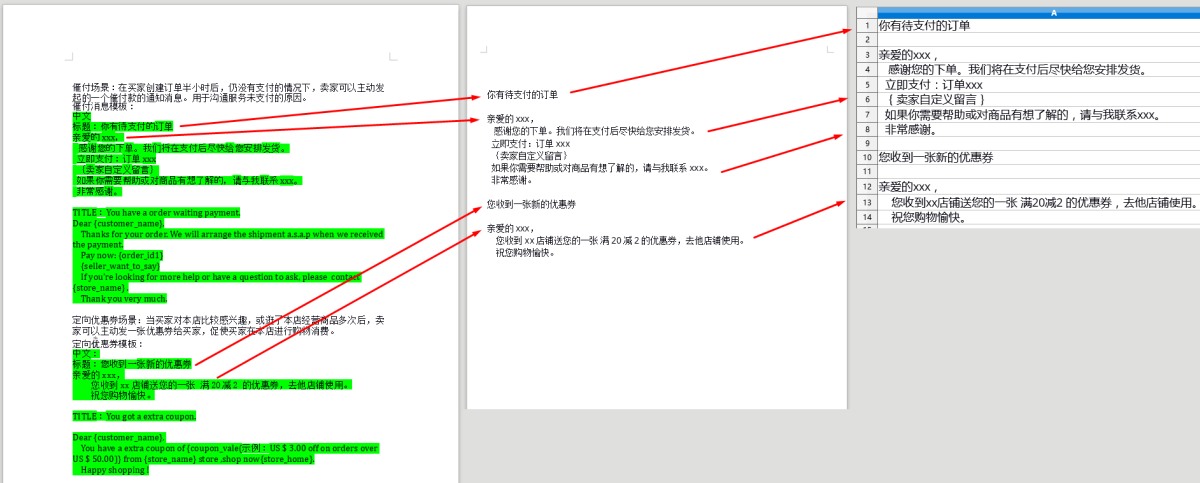
- 催付场景:在买家创建订单半小时后,仍没有支付的情况下,卖家可以主动发起的一个催付款的通知消息。用于沟通服务未支付的原因。 [situation: ....] This describes the situation for which the text will be used.
- 催付消息模板: [template payment reminders] This marks the beginning of the template to be translated.
- 中文 [Chinese] This indicates that the following text is in Chinese.
- 标题 [title] This indicates that a header follows.
...and similar markers. As well as English text, which we will leave as is.
Making a Copy with Desired Content
Now, save the important part in a separate file without any extra clutter. The most obvious solution is to retain the text in the same format as the original Word document, stripping it of debris. You will get something like this:
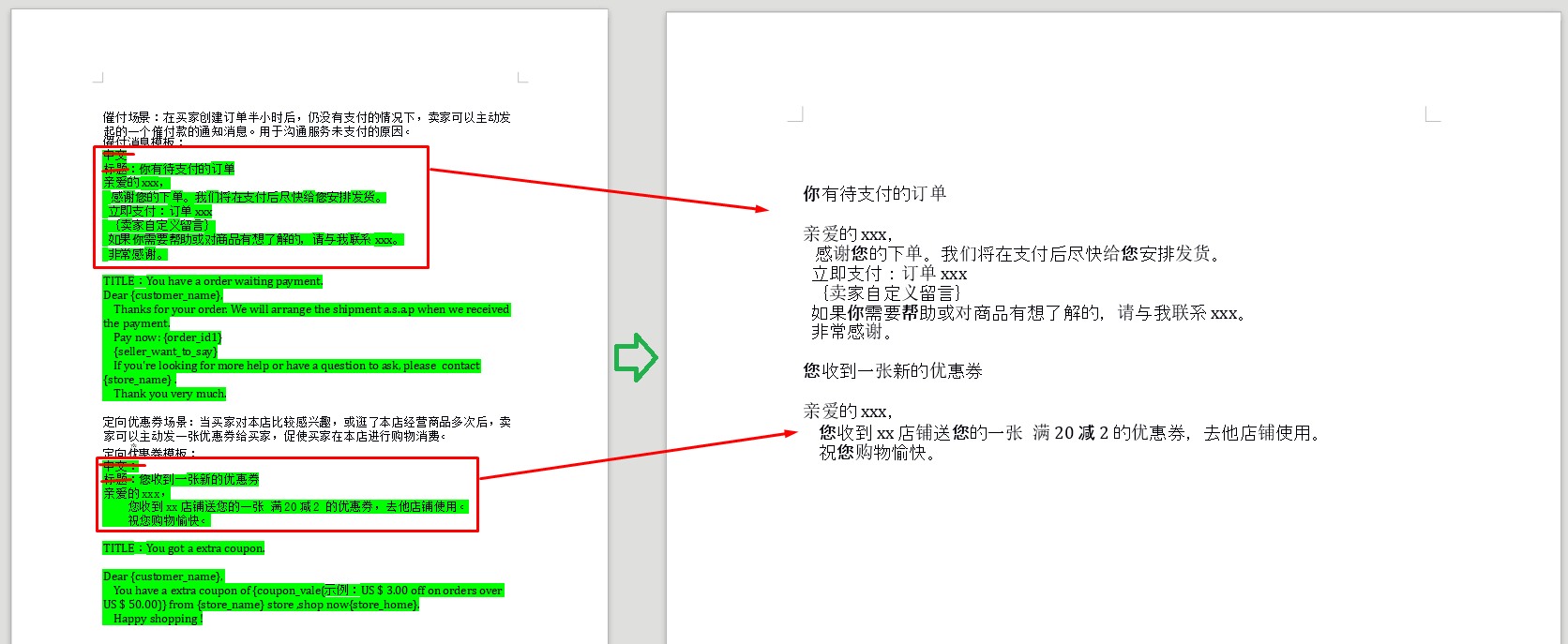
This file is now ready to work with in OmegaT or a similar program. But there are pitfalls. Put yourself in the customer's shoes:
- Can they correlate the source and translation, given that they don't understand the target language?
- Is there room for error — a possibility of making a stupid mistake? For example, selecting the wrong piece of content or accidentally copying a comment section to the actual web page?
- Is the file structure clear?
A Word file is not a perfect choice for such cases, as the text to translate is mixed with comment text. You can make the job easier for both yourself and the customer. The clearer the structure, the fewer questions they will ask. The solution is simple: transfer the desired text into an Excel spreadsheet:
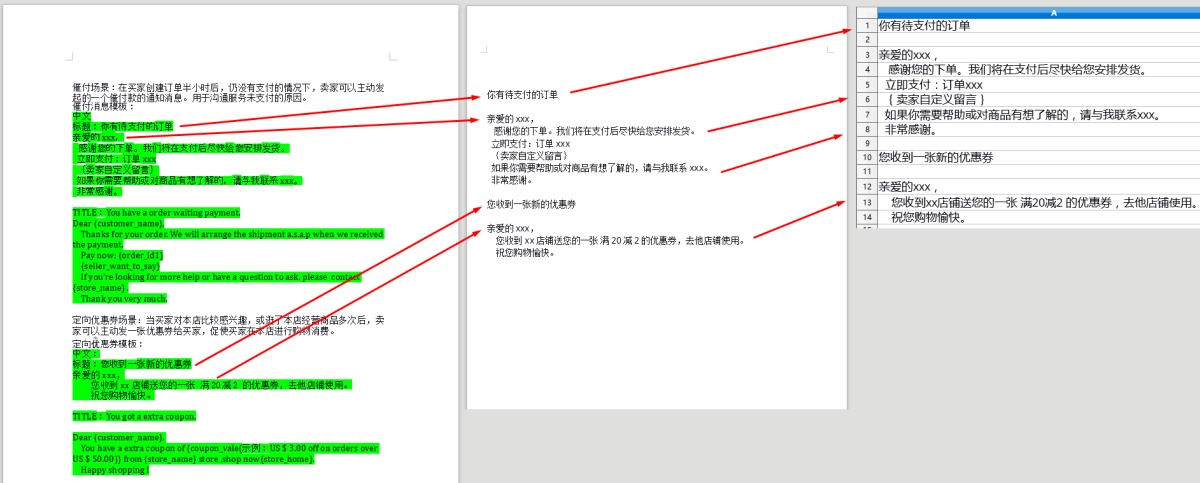
This is a simple Ctrl+C -> Ctrl+V. Whichever format you choose, save the resulting file in the \source\ folder of your OmegaT project.

How Much Should I Charge?
Now we have only the file that needs to be translated. We can figure out how much the customer should pay. The unit of measurement in text translation is usually one word. For languages like Chinese, where it is hard to define a single word, the default unit is a single character. But that's not all. A good translator working on a large project offers a discount by leveraging recurring segments and fuzzy matches, charging less for them because they require less effort. Asking for less money might seem counterintuitive, but offering a discount and explaining why you are doing so will raise your reputation in the customer's eyes and create an image of an honest contractor. Although I could fake it, it's up to you.
Note: Offer discounts for repetition only within a specific project. Offering a lower rate for fuzzy matches from your general TM (unrelated to the current project) is not advisable :-)
Microsoft Word may count the number of characters, but it will not calculate repetitions. CAT tools like OmegaT will. First, look at the General statistics. Launch OmegaT, click Tools -> Statistics.
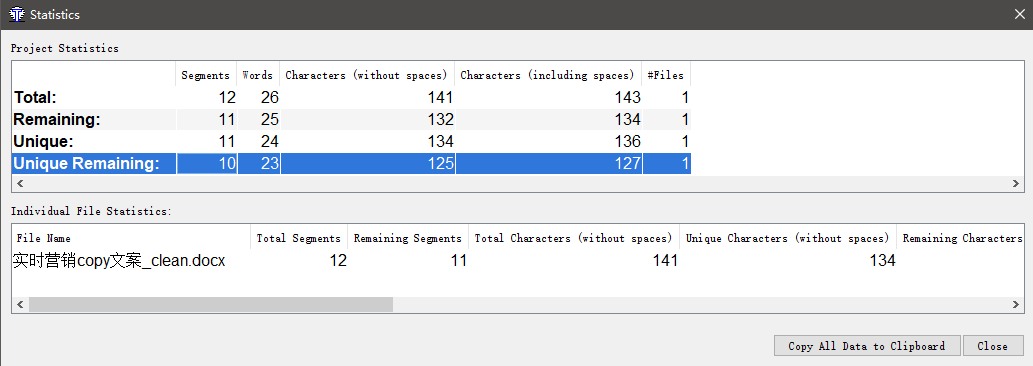
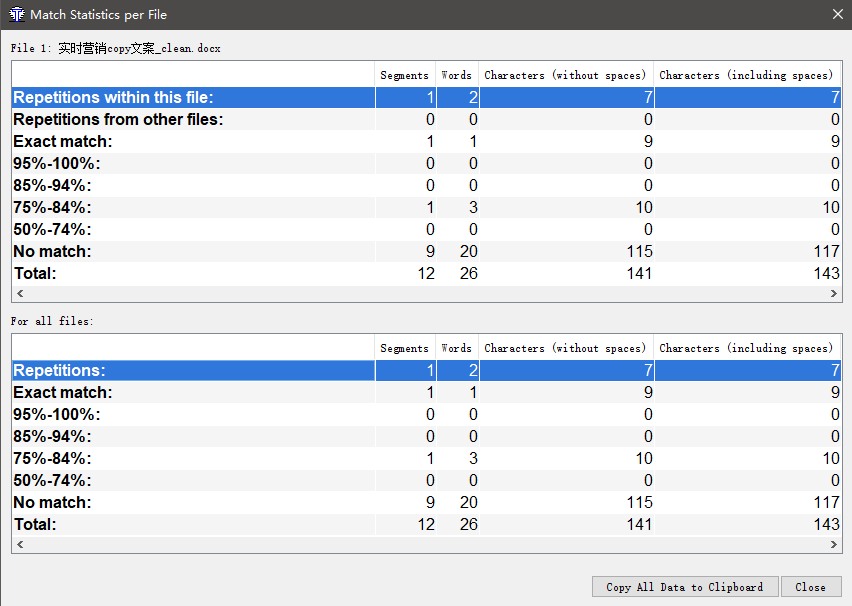
Note the numbers in total Characters and unique Characters. The difference between these two figures represents characters in sentences that are repeated in this document and are translated automatically, i.e., they do not require additional effort from you. You can also see details for similar segments where the match is less than 100%. To do this, press Tools -> Match statistics per file.
So How Much to Ask?!
If you are just beginning to translate and don't know how much to charge per page, look at the rates for your language pair at different translation agencies. Ask for the same amount or up to 50% more. If the customer refuses, bargain. In any case, your first orders will earn you more experience than money.
Translation
Launch OmegaT, open the project file, and begin translation.
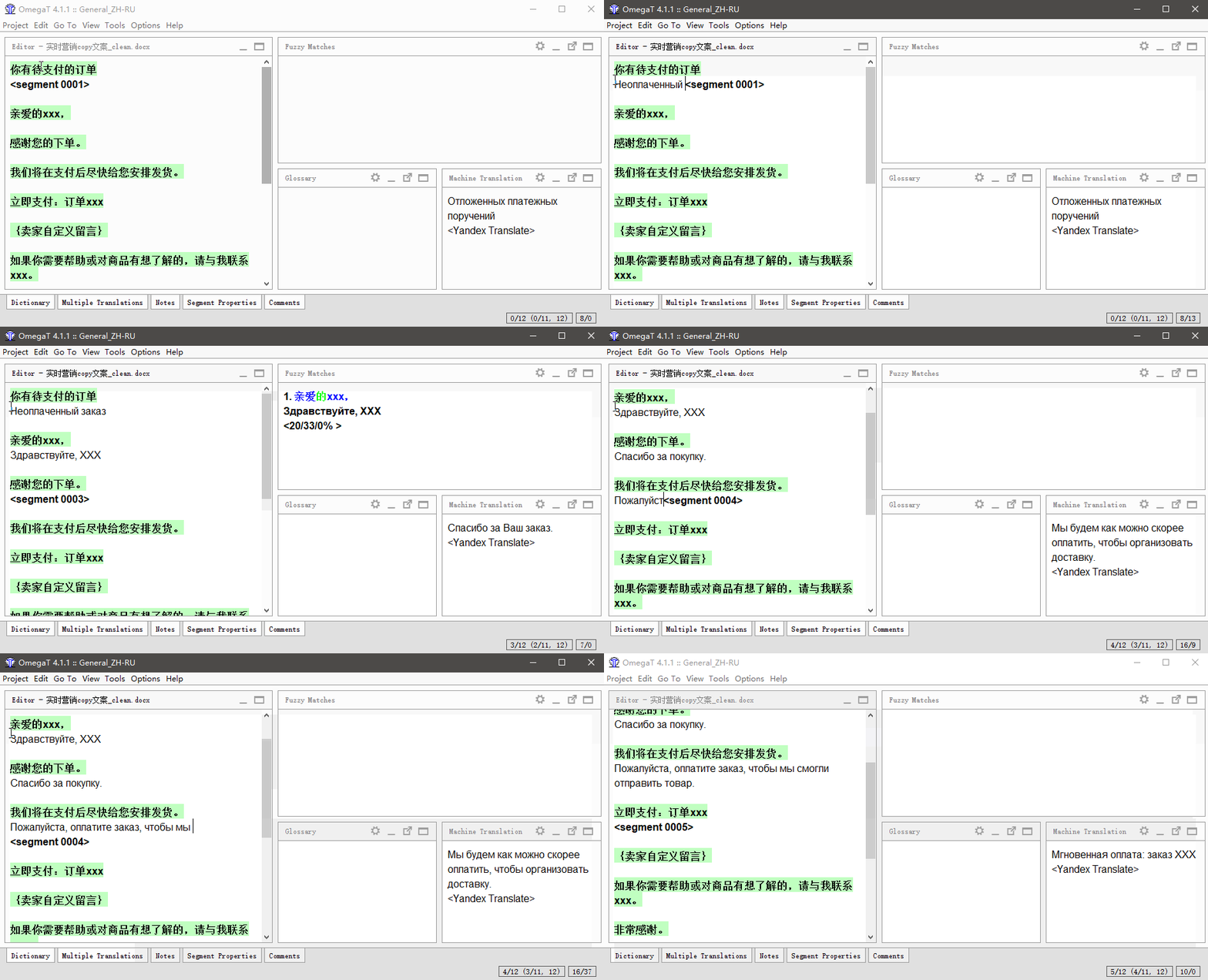
During the translation process, add new terms to the Glossary. Even if there are different possible translations, you want to stick to one. For example, if you are afraid of getting lost in the translation of the word 订单 (order, order form, purchase), add it to the Glossary. The next time the word is found in the text, the system will suggest the translation and even help you type it:
Review
Before returning the file to the customer, verify that the text has no mistakes: use the built-in Language Tools. To do this, press Tools -> Check issues...
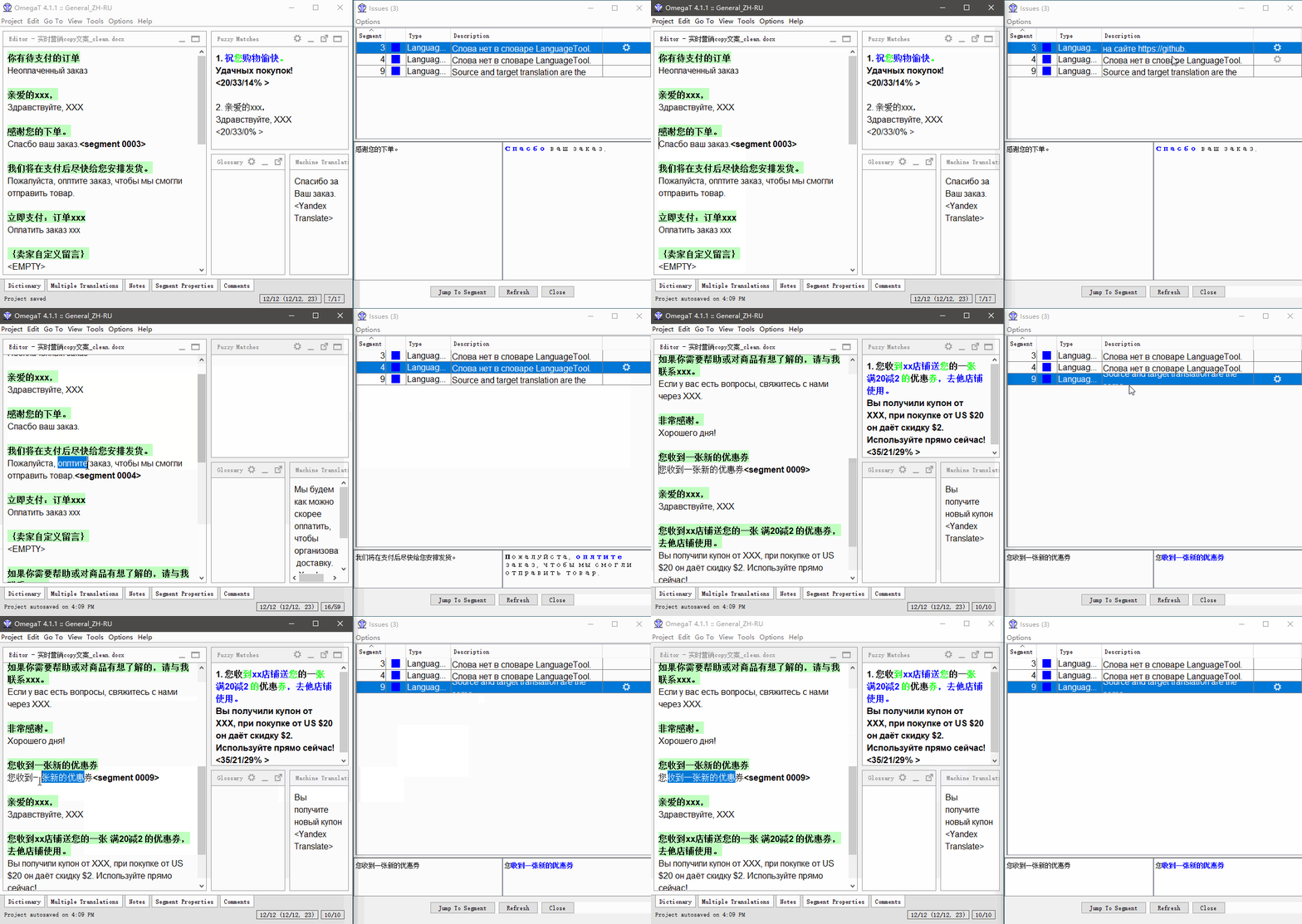
You can see three mistakes here. Two are typos — nothing unusual, as these could be caught by a spellchecker in Word. But missing translation for one sentence would probably be missed by a simple text editor. Double-click on the error in Issues to go to the segment containing it.
Create the Final File
When the translation is finished, press Project -> Create translated documents. In the \target\ folder, the file will appear. It will have the same structure as the original file, only with the text replaced by the translation. Here are the original and translated Word files:
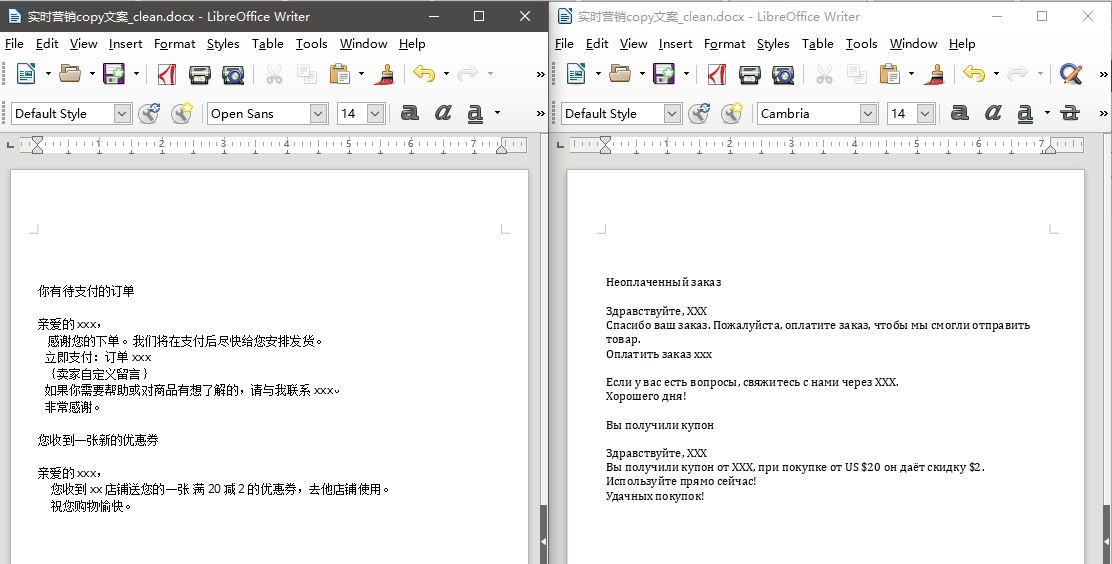
This option is optimal if, for example, you are translating a contract or a book and need an identical copy of the document in a different language. But if the client continues to use your text, they might face difficulties. How will they match your translation with the original without peering at each row? In this case, you can use Excel:
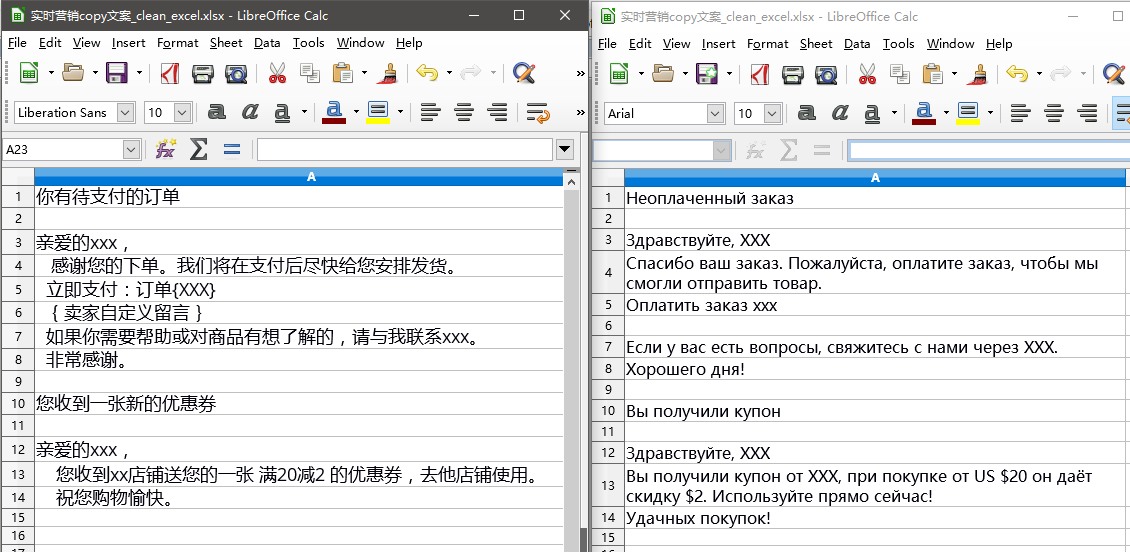
As you can see, each line in Chinese corresponds to a line in Russian under the same number. Now you simply need to combine both columns into a single file. Copy the column to another file and label them. The customer won't go wrong:
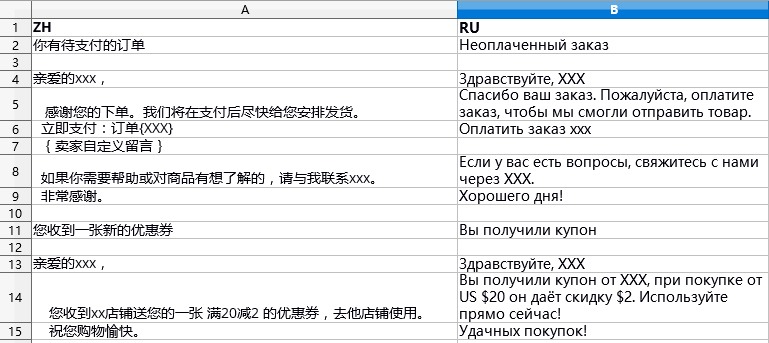
The file is ready; return it to the customer.
There are lots of tiny details and secrets in a translator's daily work. Ask me anything! I am here to answer.
P.S.: This article was translated from Russian using this exact process and OmegaT.